
Lyra BYOC Trunks can be set up and managed via the Voice Connections page in the 2talk Cloud PBX
To find the Voice Connections module log into your 2talk account and select the Cloud PBX tab from the top menu.
Voice Connections can be found in the left hand Cloud PBX menu. Click to open the Voice Connections management page.
Creating a New BYOC Trunk
Click the Create connection button
Label: Enter a name for the connection/trunk in the Label field (mandatory).
The label field is an alphanumeric field, underscore, dash and full stop are also supported.
Connection Type: Select the BYOC Connection Type from the drop down menu and complete the settings form as appropriate for the trunk type you wish to create.
BYOC Trunk - Genesys
Select Genesys from the service provider drop down options to create a Genesys BYOC trunk.
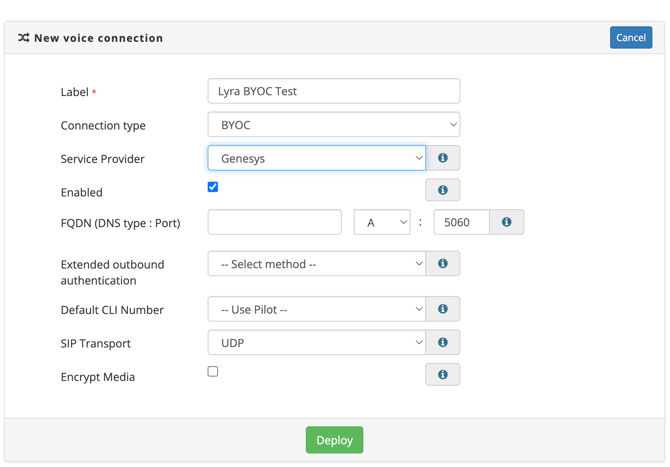
Enabled: Turns the BYOC connection on or off.
FQDN (DNS type : Port): Enter the FQDN, DNS Type and port number that you wish inbound calls to be delivered to.
Extended Outbound Authentication: Select a method to authenticate outbound calls in addition to only permitting calls from the configured source IPs. Auth Token - A token will be generated and this needs to be added to SIP invites in the X-Pure-AuthToken header.
Default CLI Number: Used when the presented CLI does not match any valid CLI on the account.
Transport: Specifies the transport protocol for SIP signalling. TLS provides encrypted signalling.
Encrypt Media: Forces the use of SRTP (Secure Real-time Transport Protocol) for encrypted media. This should be paired with TLS for fully encrypted signalling and media.
Editing a BYOC Trunk
Once your connection is created it will appear in the Voice Connections list for your account and you will have the option to edit the connection or to assign numbers to the connection.
ID: 2talk will assign a unique ID to the trunk for identification purposes.
Label: Connection Name, this field can be edited
Type: Indicates connection type. This cannot be changed once the trunk is created
Enabled: Indicates if connection is enabled or not
Trunk State: Trunk State Deploying means your connection is still in the process of being on the voice platform. The state will show as deployed once it is ready to route calls.
Actions: Edit connection settings or Assign numbers to the connection
Lyra BYOC Trunks - Things to Know
Pilot Number: For new Lyra Voice Connections 2talk will assign a pilot number to your trunk as part of creation, there is no charge for this number. The pilot number is to be used as the user name when registering the trunk in your SIP endpoint.
Edit Options: Once a trunk is created you cannot edit:
-
Create Date
-
Trunk Type
-
Pilot Number
Assigning Numbers to your Trunk
You can assign numbers at Account, Group or Individual number level
Account Level: If you select this option all numbers provisioned on the account will automatically attach to the trunk.
Group Level: If you select this option all numbers assigned to the selected group will automatically attach to the trunk
Number Level: If you select this option you can assign individual numbers on the account to the particular trunk.
Remove existing Child Assignments: Checking this box will set the trunk back to an account level assignment and any Group or Number level sub settings will be removed