
To find the Voice Connections module log into your 2talk account and select the Cloud PBX tab from the top menu.
Voice Connections can be found in the left hand Cloud PBX menu. Click to open the Voice Connections management page.
Register Trunks require authentication from the pilot number on the trunk. Please ensure this number registers to lyra.2talk.co.nz
Creating a New Register Trunk
Click the Create connection button
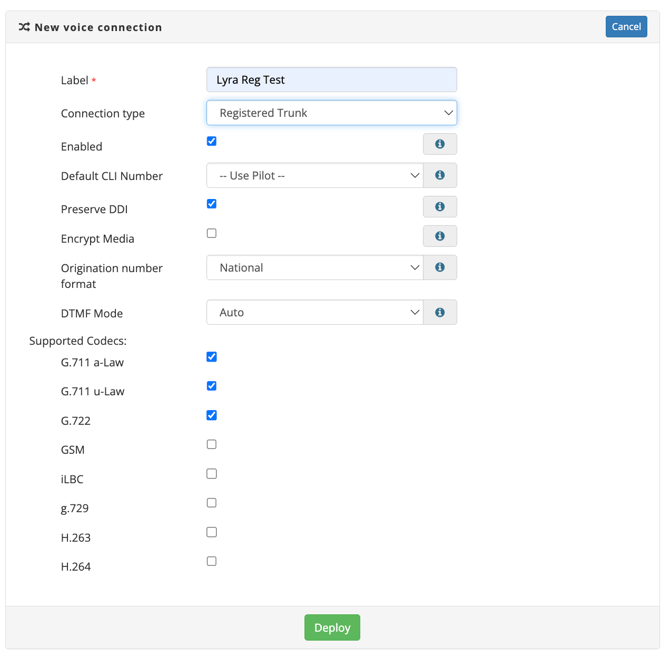
Label: Enter a name for the connection/trunk in the Label field (mandatory).
The label field is an alphanumeric field, underscore, dash and full stop are also supported.
Connection Type: Select the Registered Trunk Connection Type from the drop down menu and complete the settings form as appropriate.
Register Trunk Settings
Enabled: Turns the SIP connection on or off.
Default CLI Number: Used when the presented CLI does not match any valid CLI on the account.
Preserve DDI: When ticked inbound calls will be delivered to the user agent with original dialled DDI information in the SIP headers.
Encrypt Media: Forces the use of SRTP (Secure Real-time Transport Protocol) for encrypted media. This should be paired with TLS for fully encrypted signalling and media.
Origination Number Format: Sets the number format on outbound calls - options are National, E.164 & +E.164.
DTMF Mode: Forces the DTMF method the proxy will use for this connection - options are Auto, Force to RFC2833, Force to Inband, Force to SIP Info.
Codecs: Enables selections of codes to support on the connection.
CLI Presentation Notes
You can present another number on the account as your Caller ID by configuring your PBX to send the SIP headers described in the Registered Trunk section of 'SIP Trunking - Outbound Caller ID'.
Display name: Most devices such as soft phones and IP Phones refer to the name part as the Display name.
Asterisk based PBX systems - the name part can be set in the SIP configuration with the callerid= field – or if you wish to present it in the dial plan then you use the CALLERID (name) variable. By changing this name part to the number you wish to present on the call you can achieve multiple caller ID presentations for each DDI over a single registration or login.
P-Asserted-Identity: see also a P-Asserted-Identity header (RFC 3325) to define the Caller ID as an alternate to manipulating the name field (subject to your system support for RFC 3325).
Register Trunk Creation
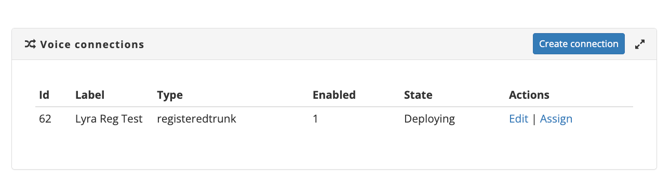
Once your connection is created it will appear in the Voice Connections list for your account and you will have the option to edit the connection or to assign numbers to the connection.
ID: 2talk will assign a unique ID to the trunk for identification purposes.
Label: Connection Name, this field can be edited
Type: Indicates connection type. This cannot be changed once the trunk is created
Enabled: Indicates if connection is enabled or not
Trunk State: Trunk State Deploying means your connection is still in the process of being created on the voice platform. The state will show as deployed once it is ready to route calls.
Actions: Edit connection settings or Assign numbers to the connection
Editing a Register Trunk
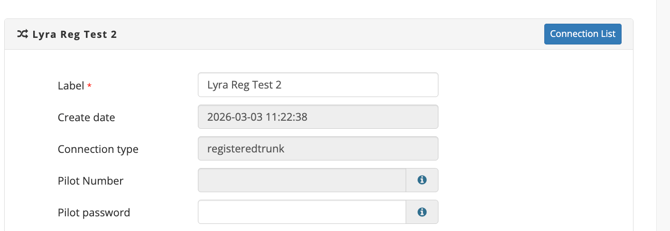
Pilot Number: For new Lyra Voice Connections 2talk will assign a pilot number to your trunk as part of creation, there is no charge for this number. The pilot number is to be used as the user name when registering the trunk in your SIP endpoint.
Pilot Password: You will need to add a password for your trunk pilot before you can register your SIP endpoint/PBX.
Edit Options: Once a trunk is created you cannot edit:
-
Create Date
-
Trunk Type
-
Pilot Number
Migrated Trunks Pilot Numbers: If you migrate an existing trunk 2talk will use the existing trunk pilot as the pilot number and will not assign a new number.
Other Trunk Settings: Can be edited. Please see above for settings descriptions.
Assigning Numbers to your Trunk
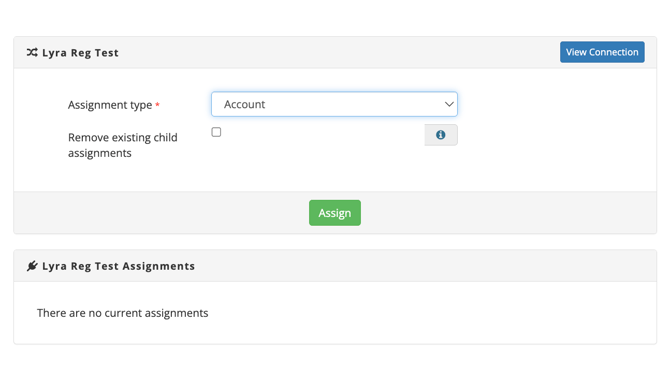
You can assign numbers at Account, Group or Individual number level
Account Level: If you select this option all numbers provisioned on the account will automatically attach to the trunk.
Group Level: If you select this option all numbers assigned to the selected group will automatically attach to the trunk
Number Level: If you select this option you can assign individual numbers on the account to the particular trunk.
Remove existing Child Assignments: Checking this box will set the trunk back to an account level assignment and any Group or Number level sub settings will be removed
Device Configuration
- Devices must be configured to register or peer with the lyra.2talk.co.nz proxy address
- If firewalls are in place, allow:
SIP Signalling From
IP: 27.111.14.99
UDP and TCP ports: 5060,5061
RTP/Media Range From
IP: 27.111.14.0/24
UDP ports: 20000–50000